Page Tools
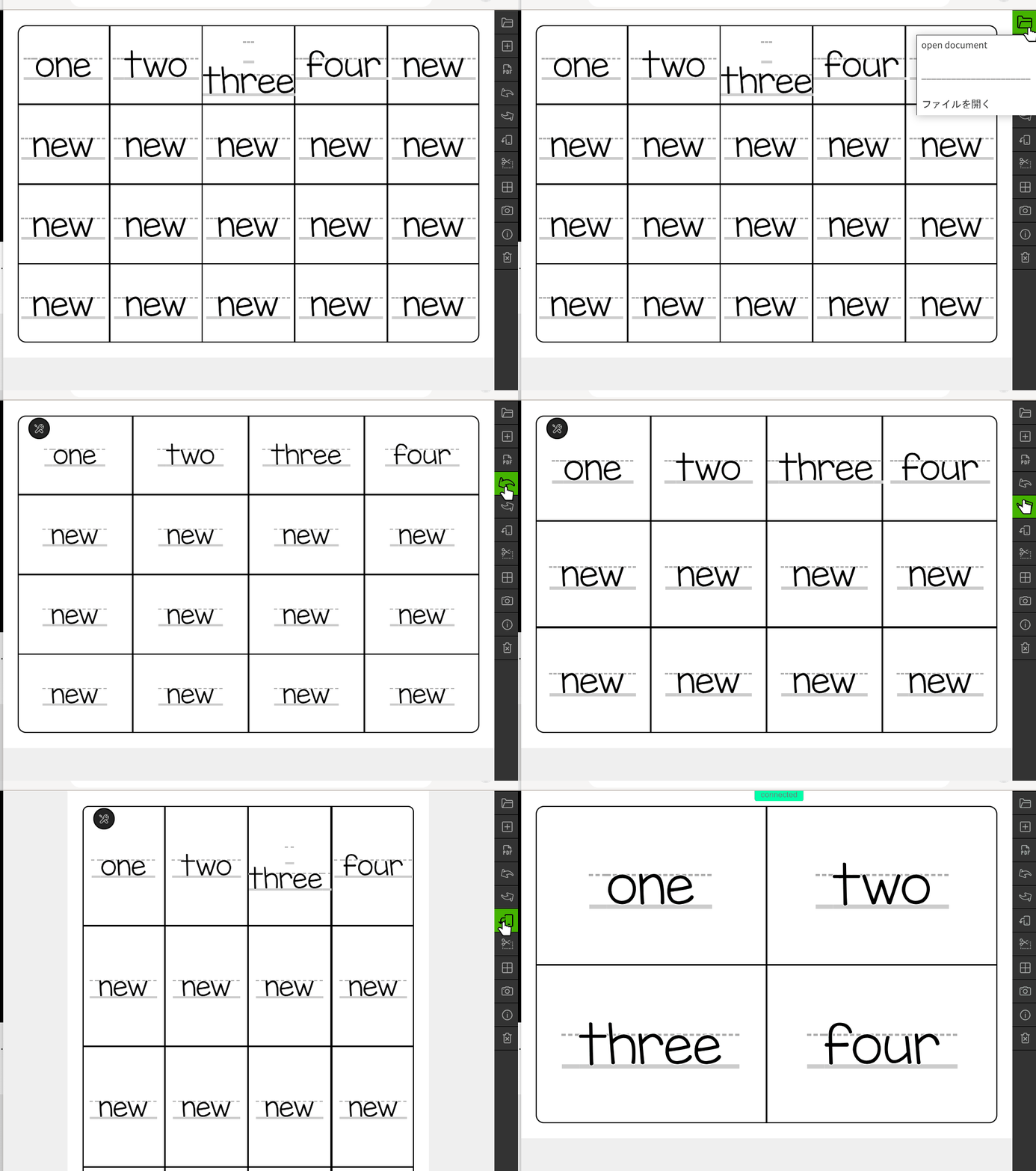
The page tools alow you to manipulate the page frame and the page as a whole.
This is a collection of animated video tutorials to help you master our bingo grid generator with ease. Let's dive in!
Click on objects in the Area Map to find more information.
The page tools alow you to manipulate the page frame and the page as a whole.
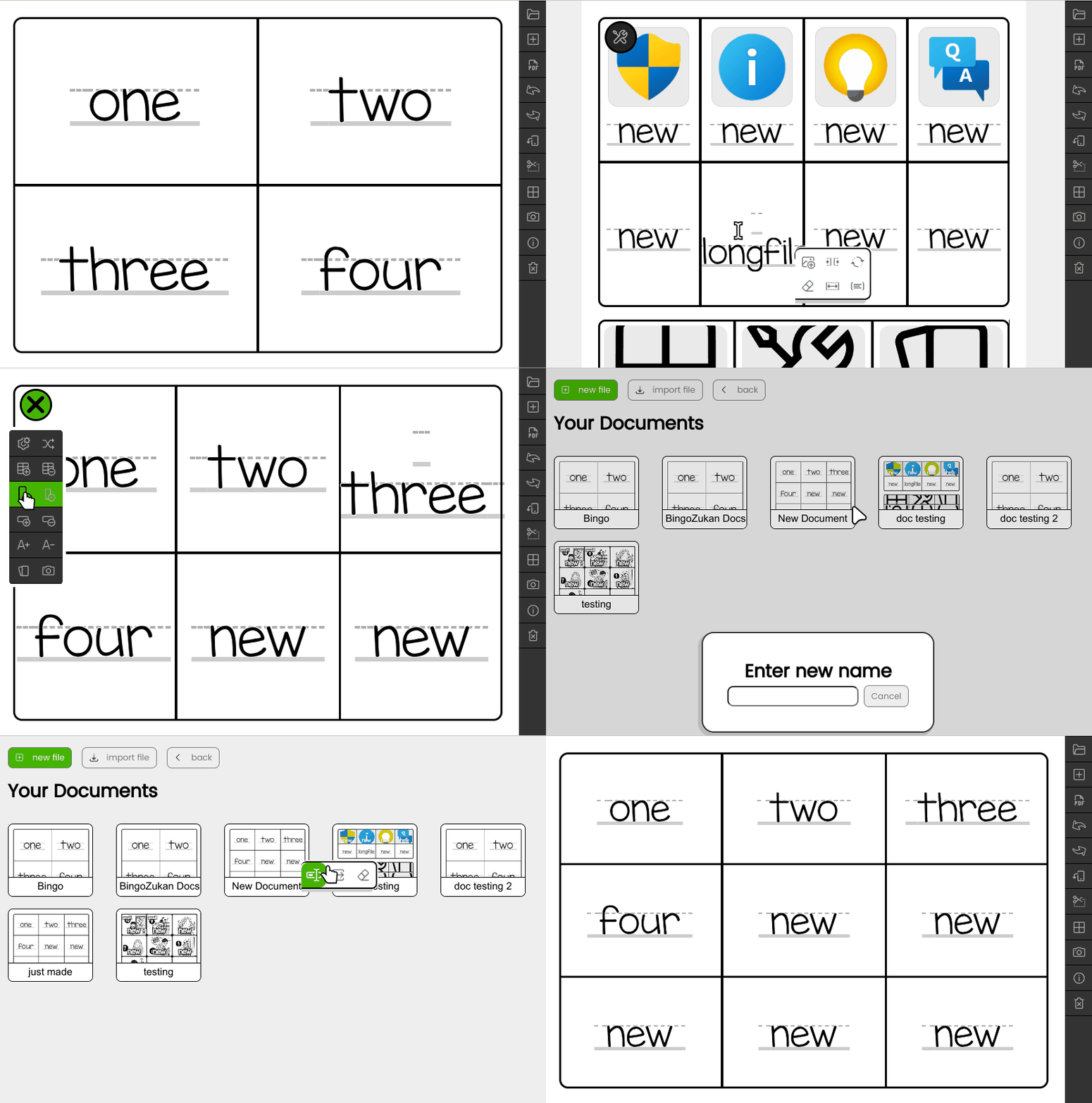
All of your work is stored inside of the Files Folder in browser data. If you create a unique name for your work then all edits to that work will automatically be saved as you make changes. You can also export and import files from other devices.
By giving a unique name to the "New Document" a new file will be saved. Any edit you make to that document will automatically be saved. You can also give a unique name to any of the saved files and they will be cloned to a file with the new name.
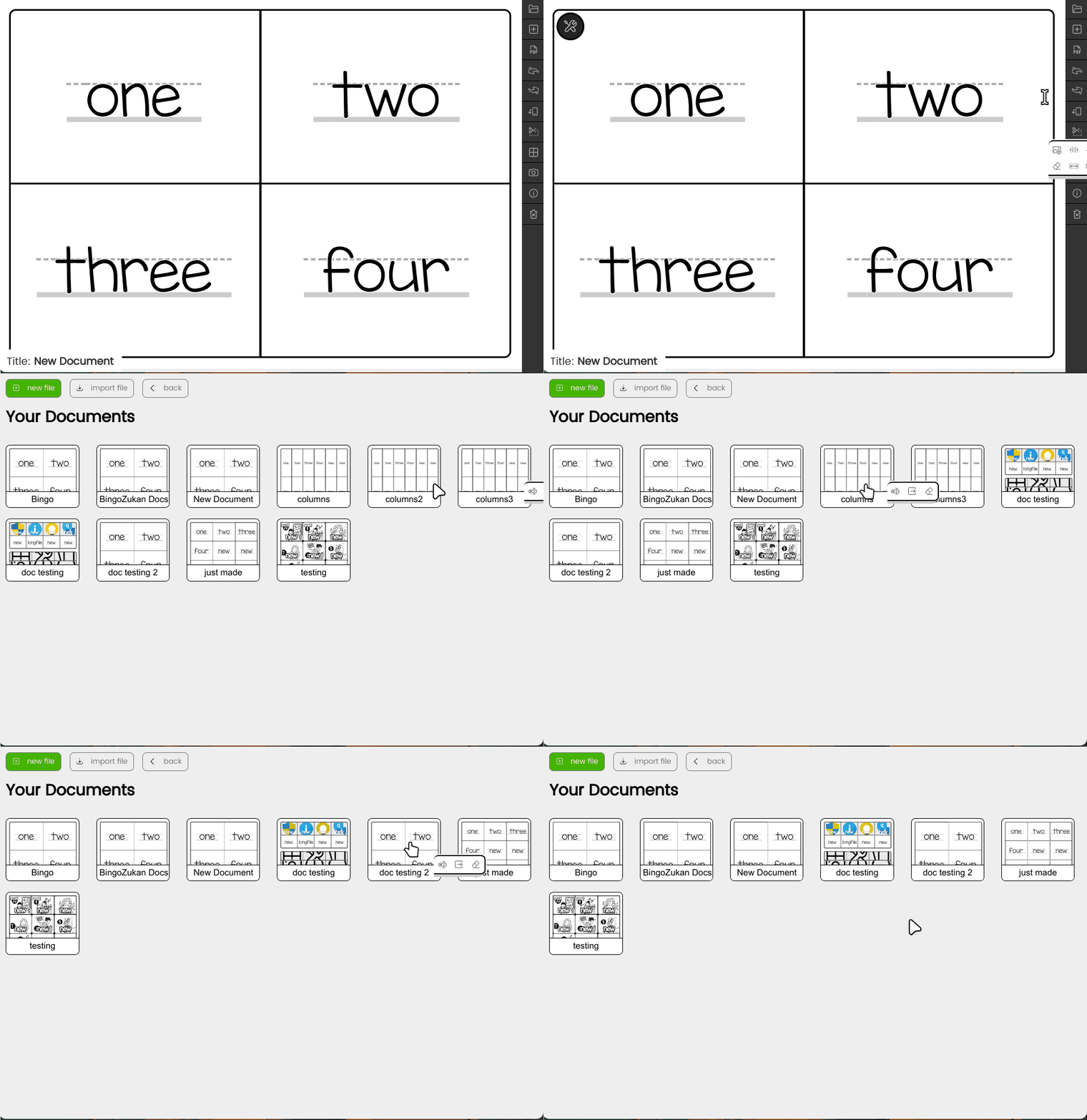
Deleting a file removes it from the browser's stored data. You cannot get it back unless you export the document first.
Export any document as an html file. You can then import it on another device.
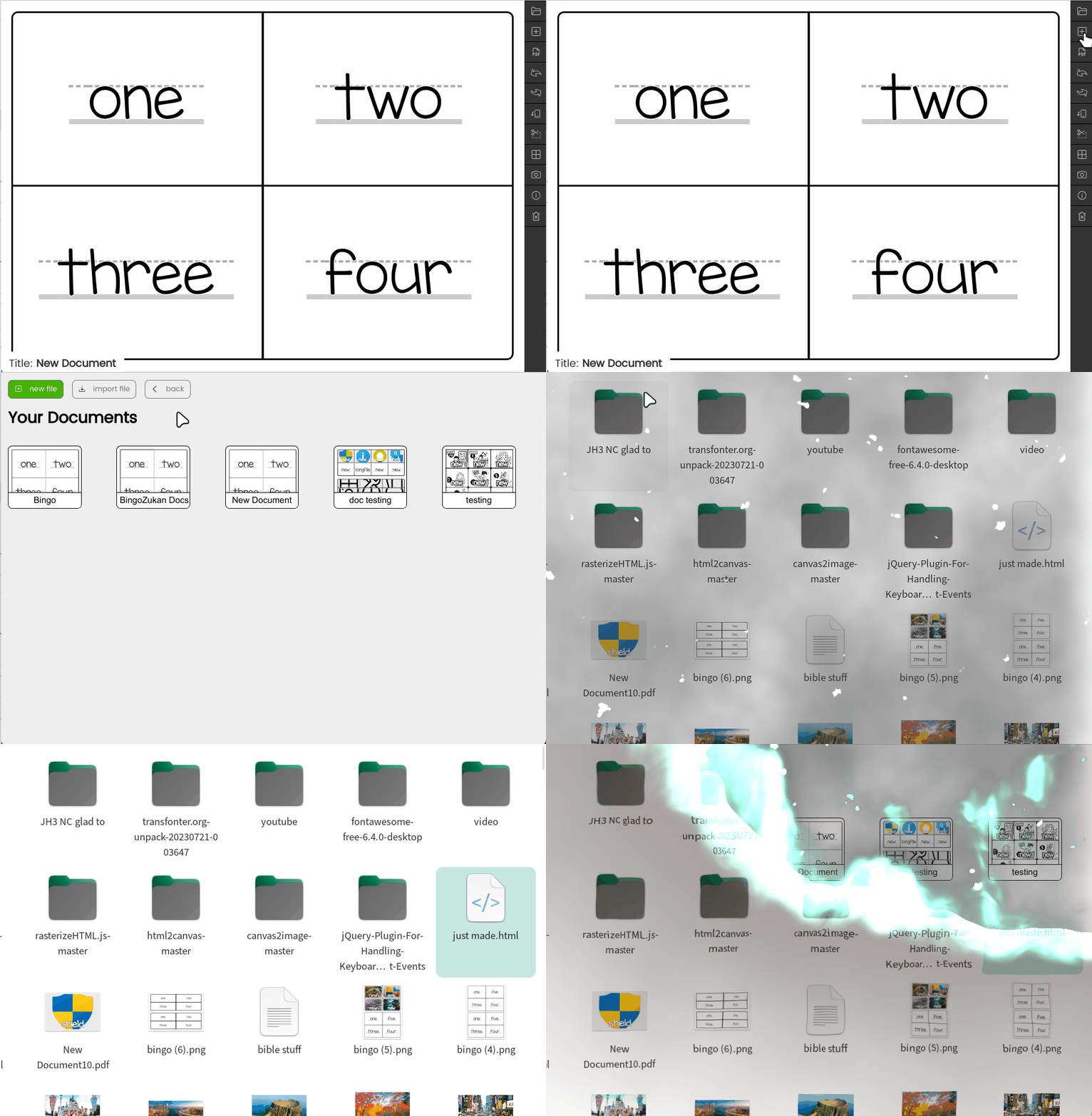
BingoZukan can import any of the html files that have been exported with BingoZukan. Additionally it can import any HTML file at all.
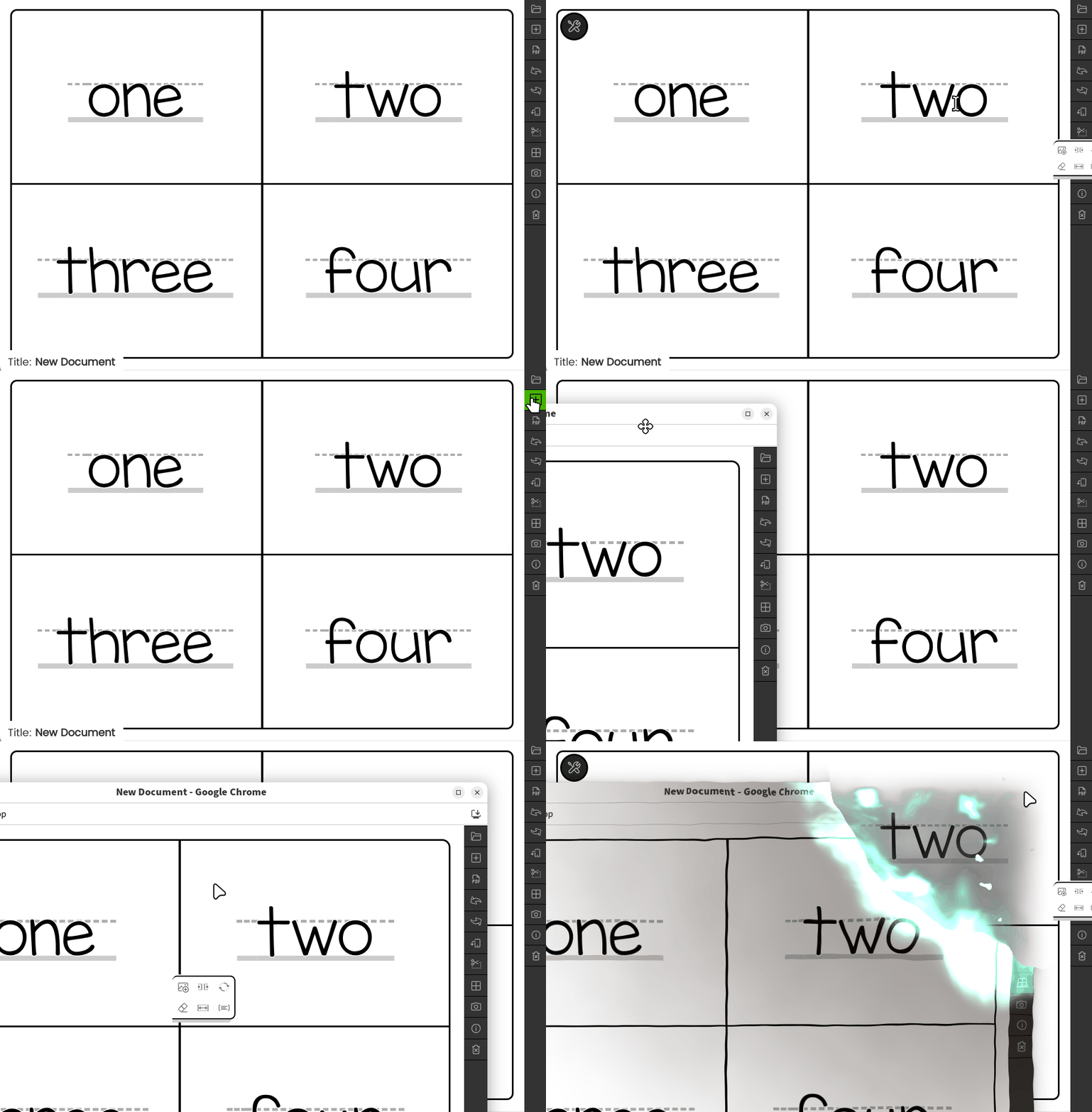
To start a new document just open a new window and begin.
If you need to use the grid for print it is recommended to save it as a PDF and then print using a PDF application. Printing directly from the app will cause war, anarchy and chaos.
Be sure to set the PDF to the correct size and orientation and turn on background images or it will not work correctly.
BingoZukan saves 10 states of history. You can undo major changes up to ten times. To undo text edits, please just use command Z.
Toggle the orientation of the page between portrait and Landscape. The aspect ratio is a standard A4 page size.
Use this to convert your grid into mini cards with crop marks which can be cut easily.
If you have switched the document to Big Cards mode or Mini Cards mode you can use this to switch back to normal grid mode.
Sometimes you don't need to make a PDF and hassle with importing it into your document. You can upsize the page and use your computer screen print feature to turn the page into an image and use it in your favorite design software.
I would like to recommend Inkscape App which will allow you to import the saved PDFs and edit them directly.
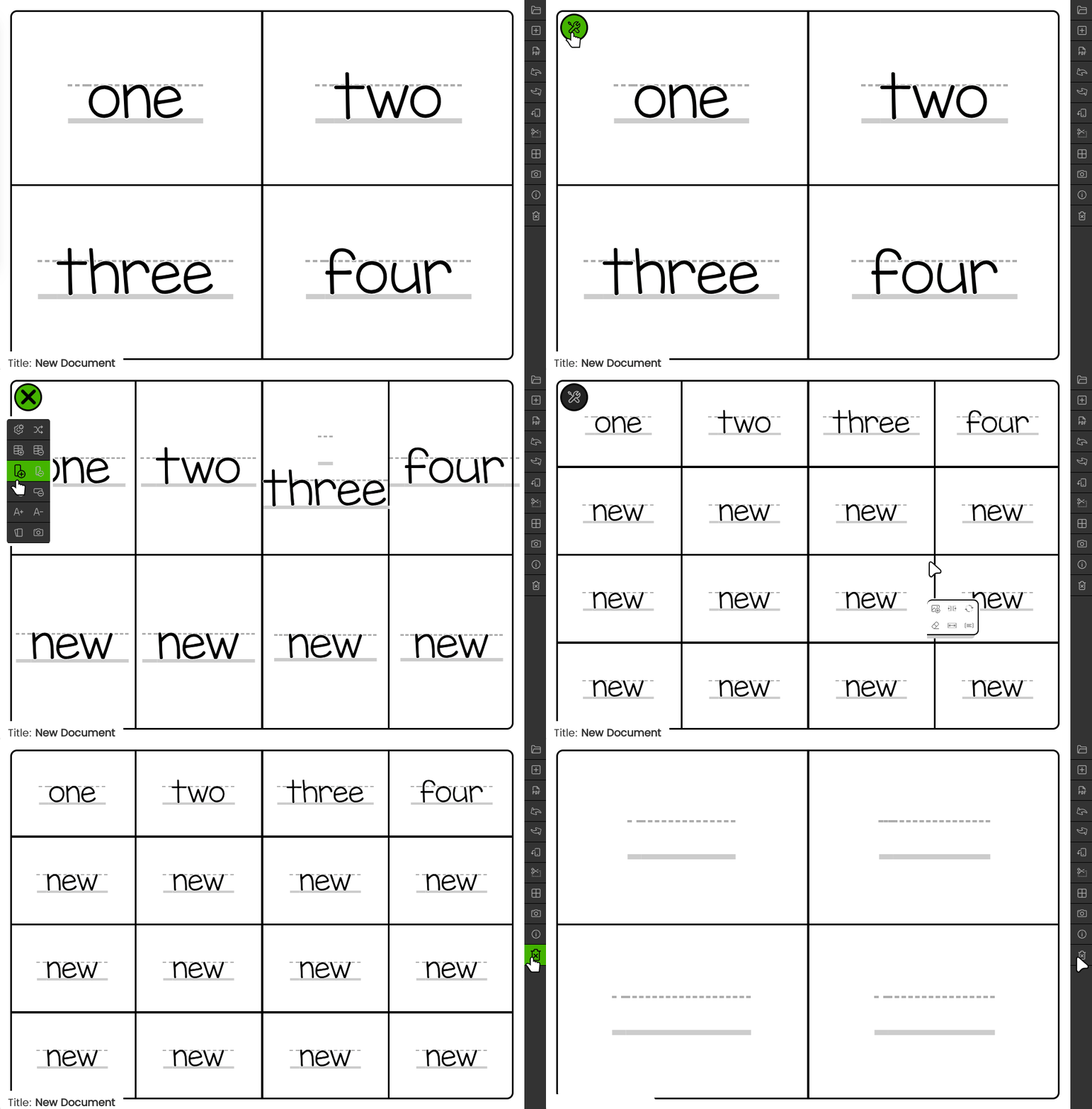
Use this if you want to clear the page and completely start from scratch. If you open a saved/cloned document and use this, it will reset that saved document as well. Be careful.
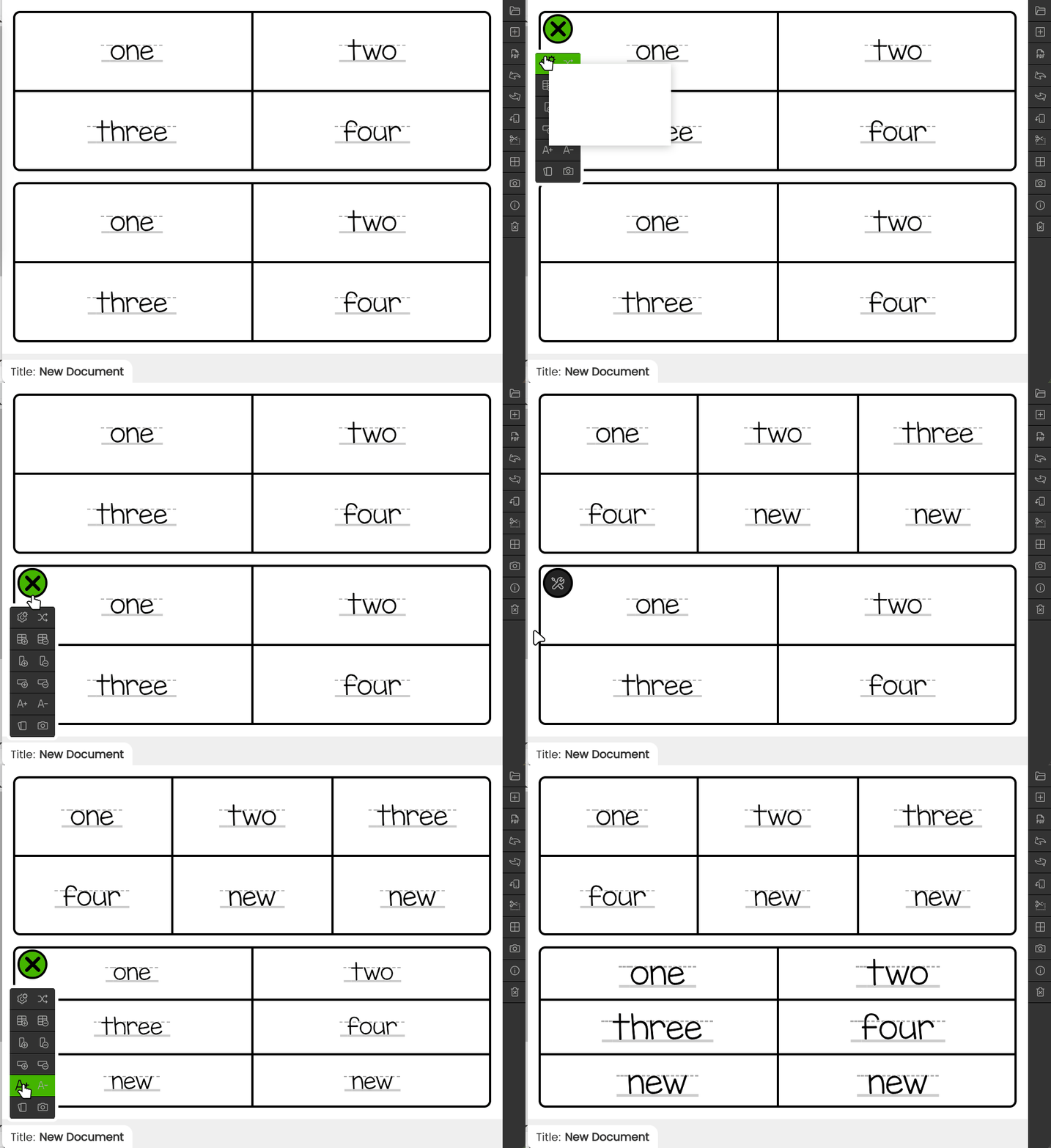
These tools allow you to duplicate and manipulate individual grids on the page.
Either type a list of words separated by a comma or drag a batch of images to the page to quickly spin up a grid.
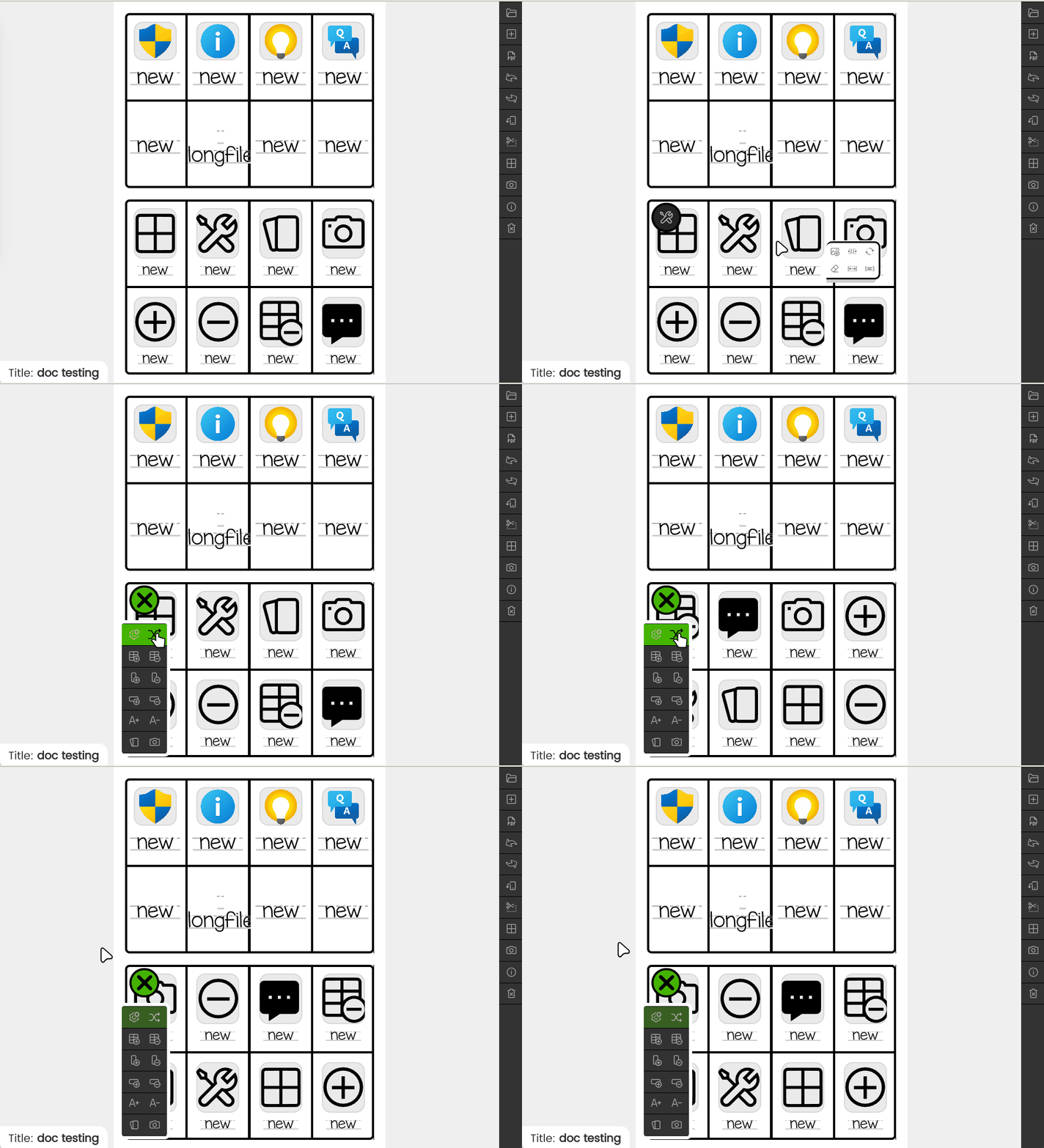
Quickly shuffle the cells of a grid randomly. If you need multiple bingo pages with different cell orientations, quickly shuffle them and save each as a new PDF.
The Add Grid button will clone this grid to the bottom of the page. Delete Grid button will delete the current grid. Remember that Undo is your friend.
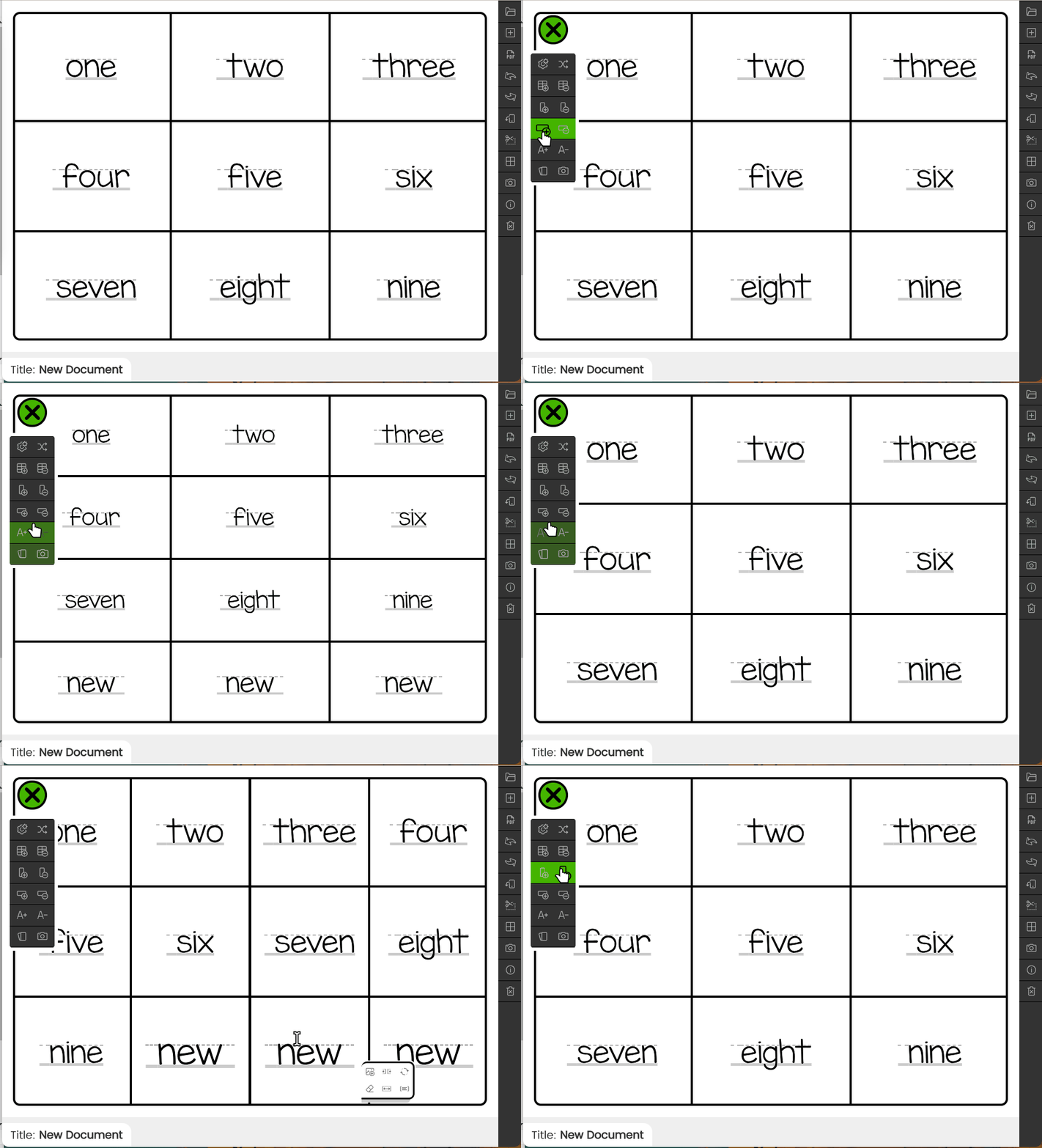
Grids/Tables can be altered by deleting or adding rows and columns. These functions work by simply removing or adding cells to the end of the grid and adjusting the column and row number. Deleting the column or row will always remove the last most recently created cells. Undo is your friend.
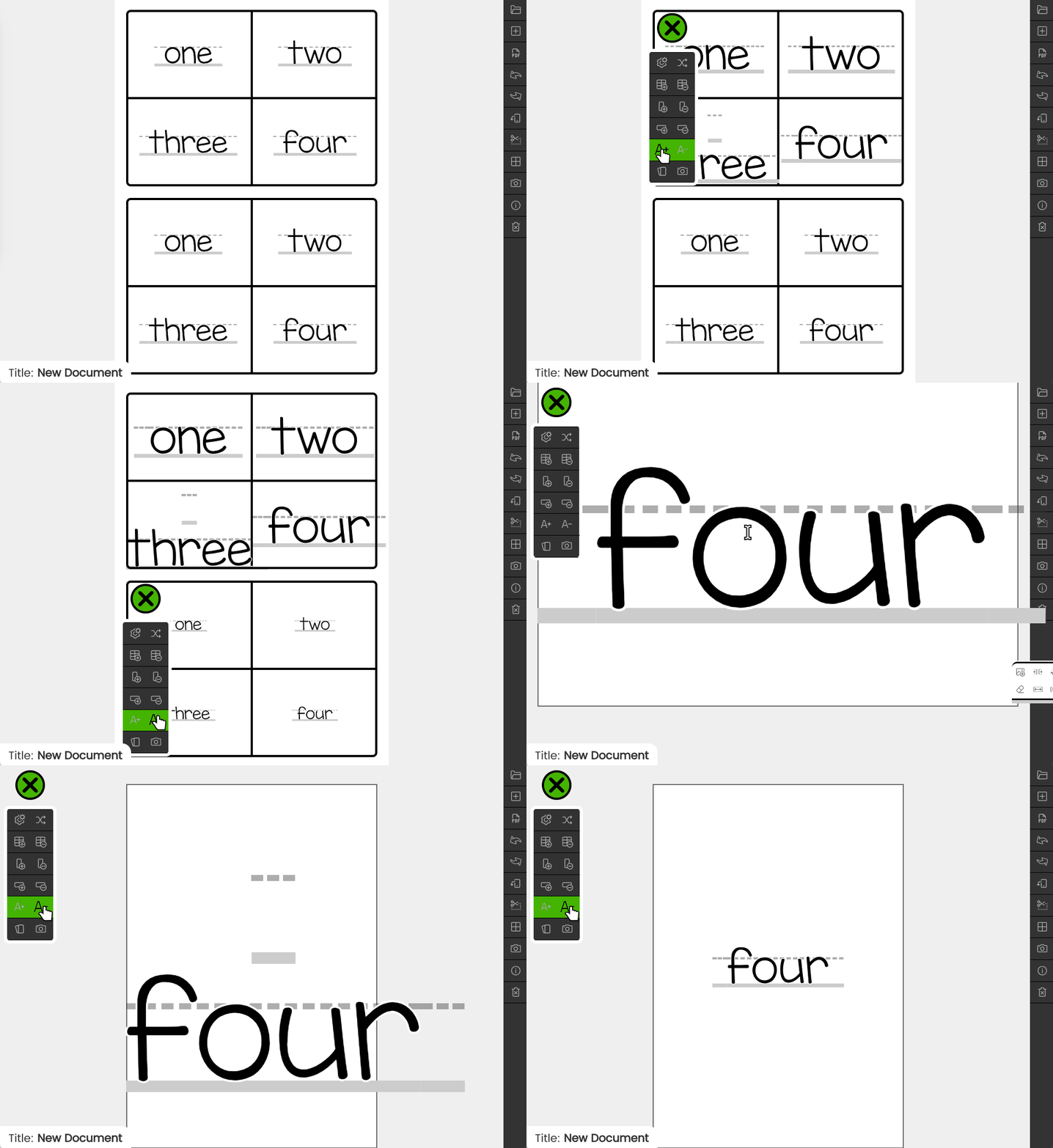
You can adjust the font size on a per grid basis. To adjust the font in an individual cell, look at the cell tools.
Quickly spin your grid into large size A4 cards for use in a classroom. Try experimenting with landscape or portrait orientations. Rememeber that you can use the grid tools to change the font sizes.
The snapshot tool will extract a single grid to allow you to take a snapshot with your computer screen print tool.
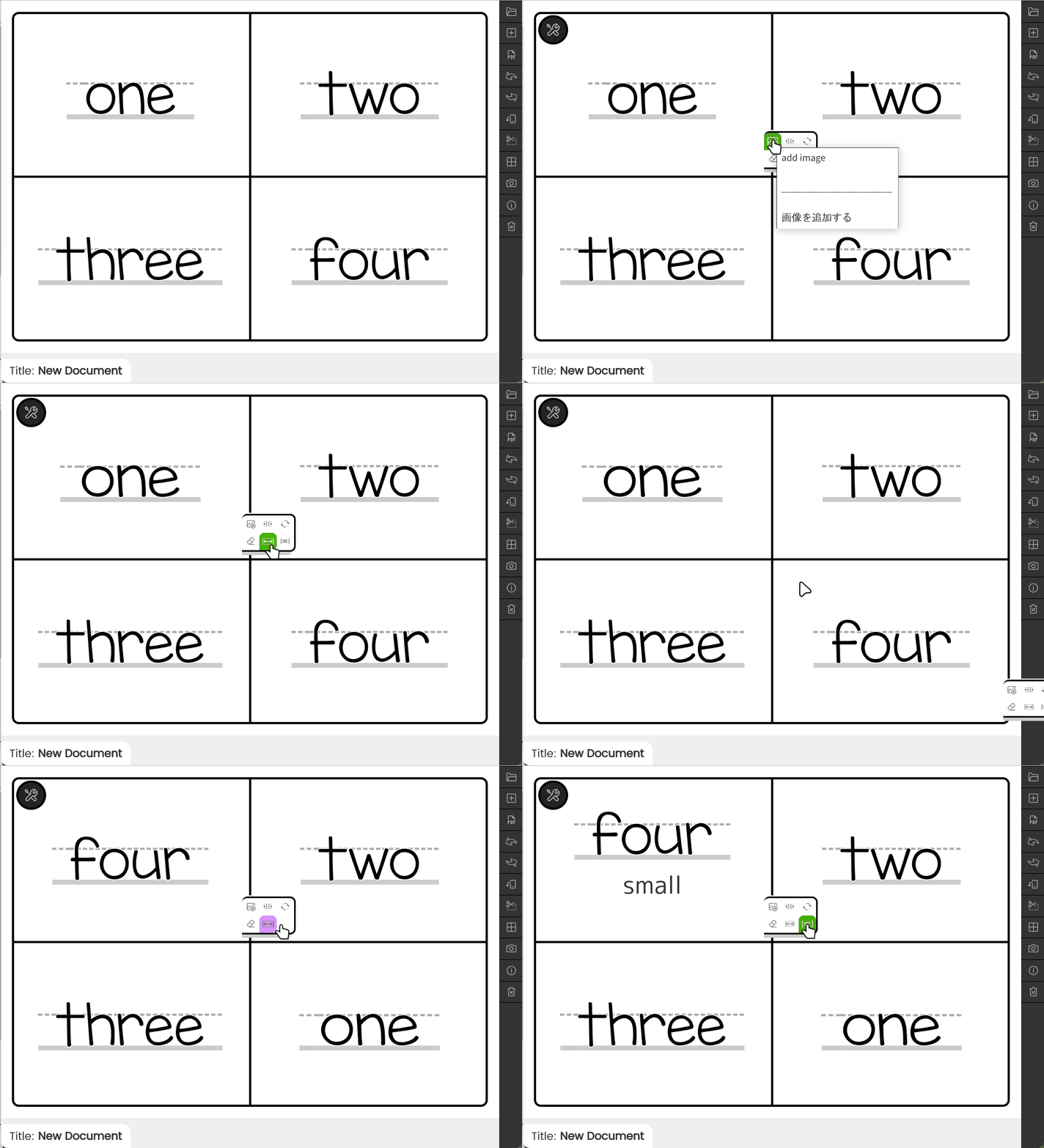 editing text/about cells
Cell tools allow you to make adjustments to individual cells.
Use this to add images to individual cells. If you need to add a large number of images at once, it is recommended to use the autogenerate button in the Grid Tools.
Use this to remove an image from a cell and reset it.
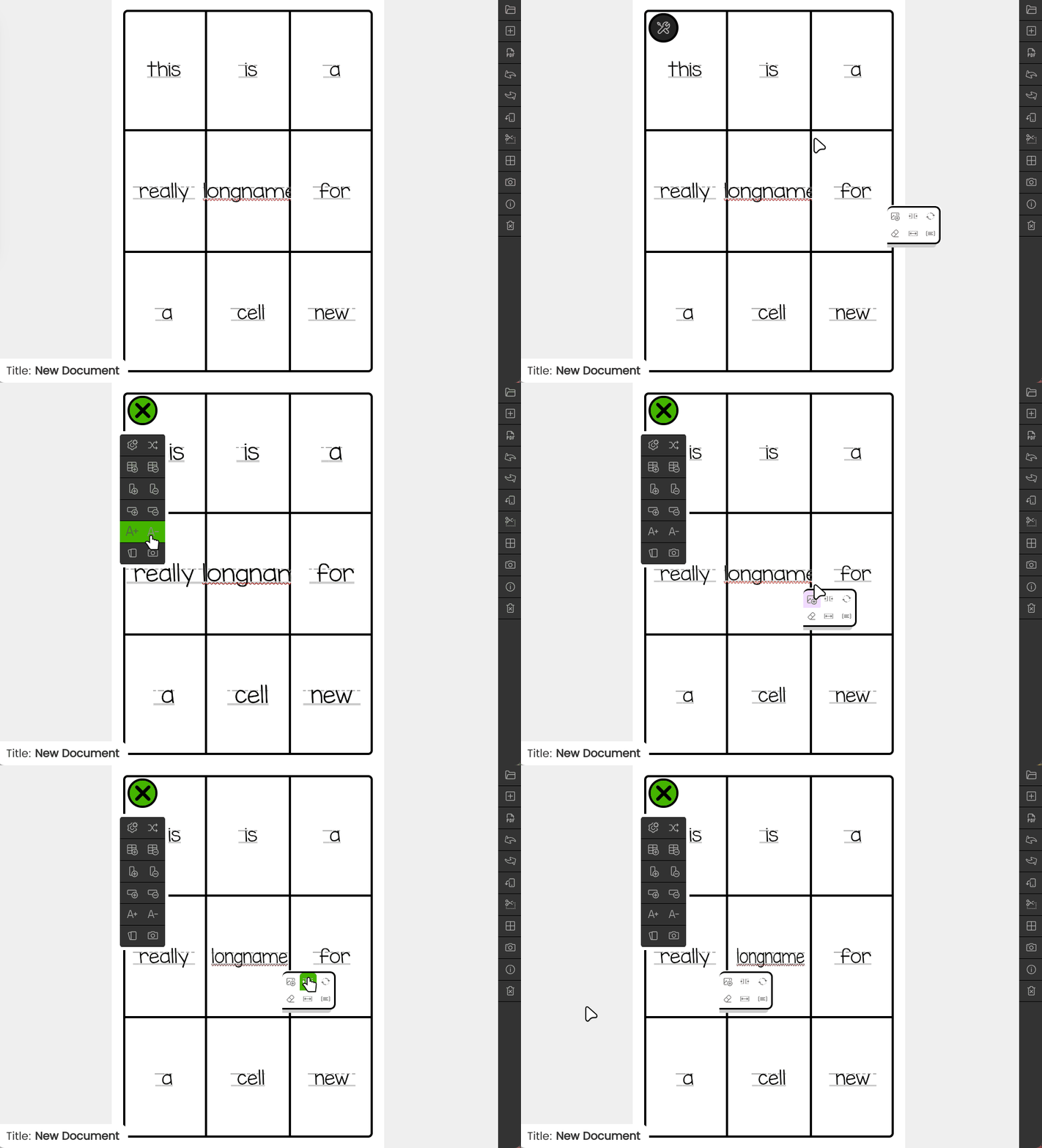
Make font size adjustments to individual cells.
 drag and drop in future
Quickly swap once cell position with another cell. Be careful with the delete row/column function because it will not respect these alterations. It will always delete the most recently created cells.
Add a small subtext to the cell. Useful for adding translations or notes to a cell.
Soon to come.